What Is Reverse Image Search? A Complete Guide to Finding Image Sources Online
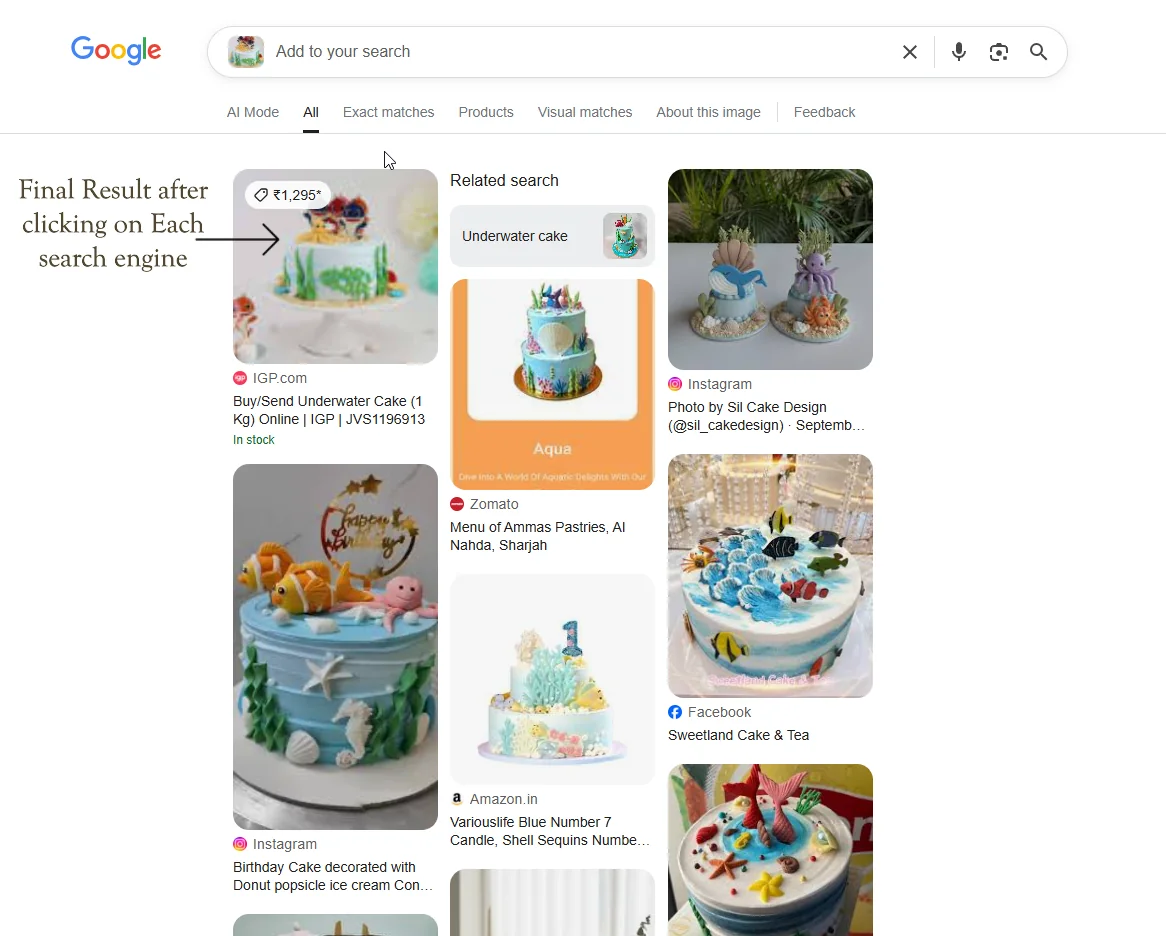
Reverse image search is one of the most powerful tools available on the internet today. Instead of typing words into a search engine, you upload an image — and the search engine finds visually similar results, exact duplicates, and the original sources where that image appears online. Whether you are a photographer protecting your copyright, a journalist verifying a news photo, or a shopper looking for the cheapest price on a product, reverse image search makes it possible to extract valuable information from any photograph.
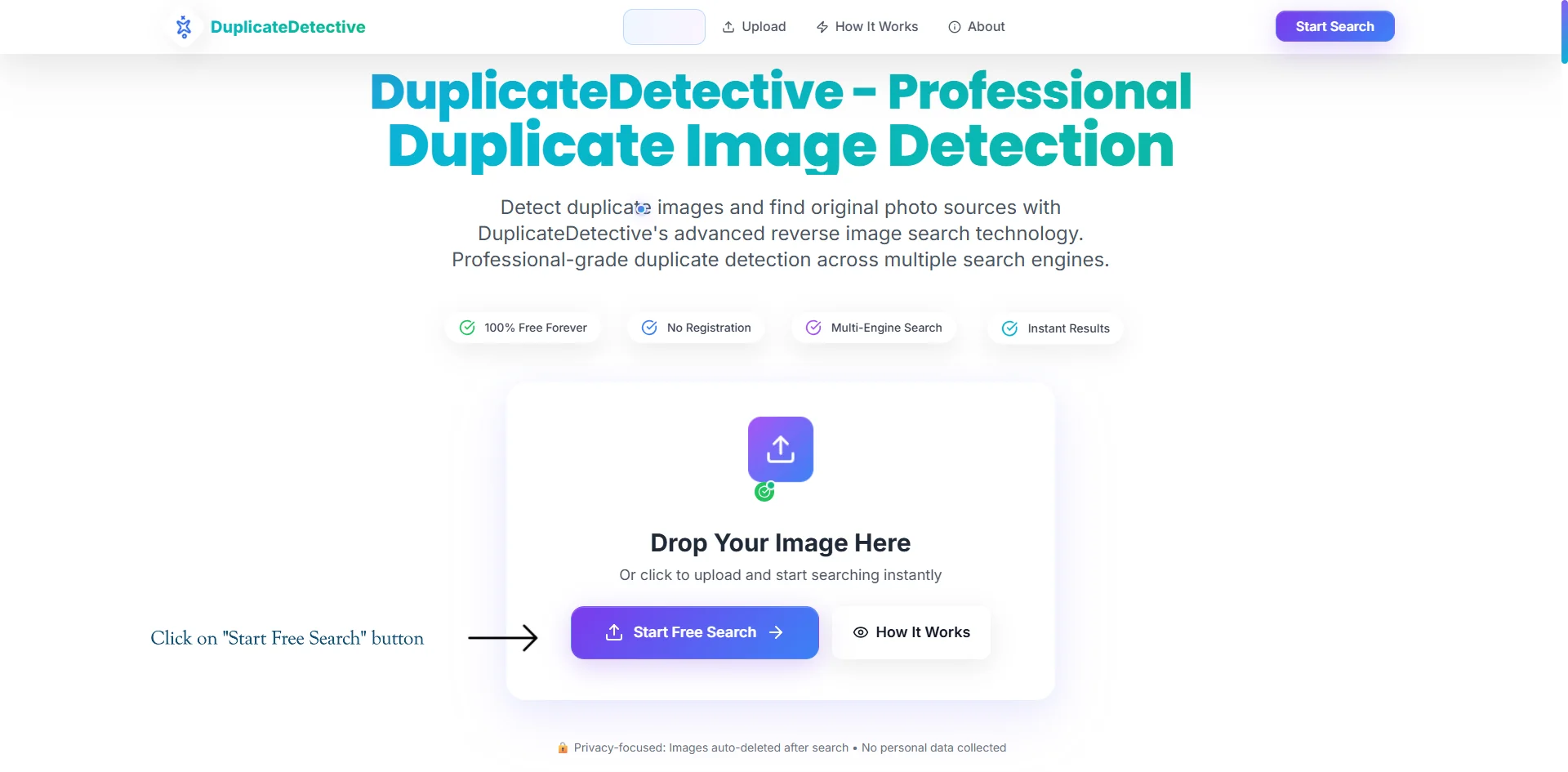
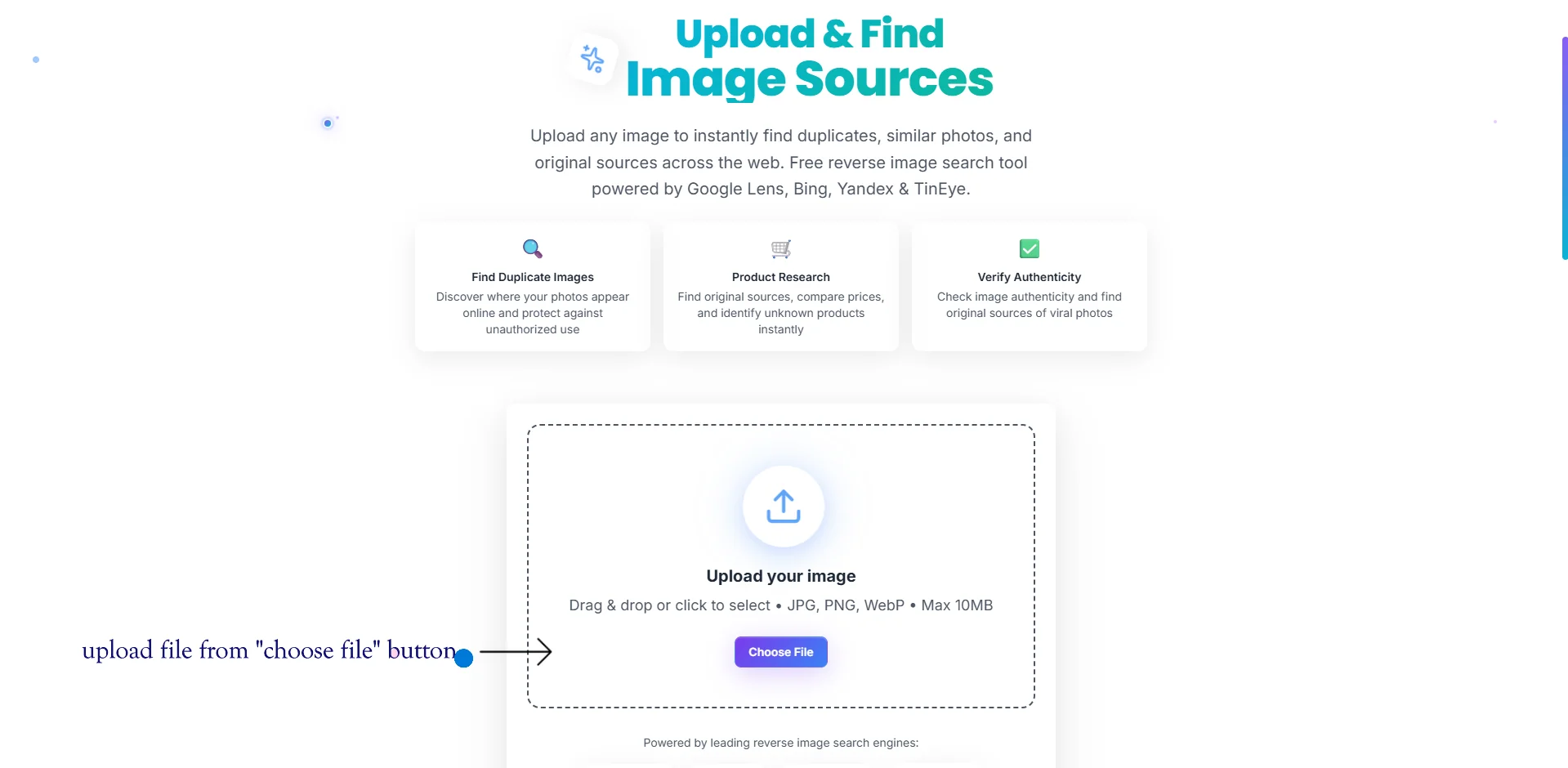
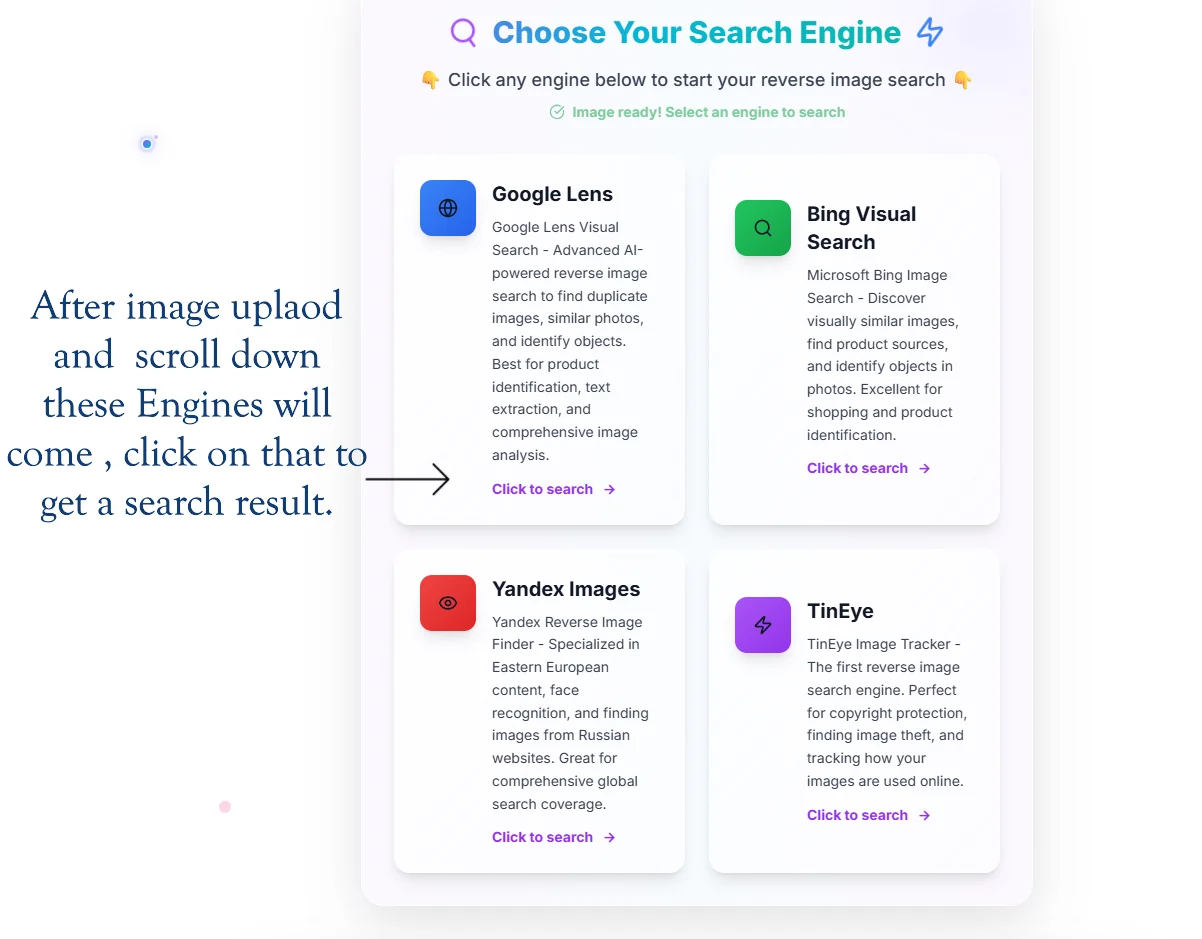
At DuplicateDetective, we take this concept further by letting you search across multiple engines — Google Lens, Bing Visual Search, Yandex Images, and TinEye — simultaneously from a single upload. This multi-engine approach dramatically increases the chances of finding every copy of your image across the web.
How Does Reverse Image Search Actually Work?
Under the hood, reverse image search engines use a technique called content-based image retrieval (CBIR). When you upload an image, the system does not simply compare it pixel-by-pixel against billions of other images — that would be computationally impossible. Instead, each search engine uses sophisticated computer vision algorithms to generate a compact mathematical representation of your image, often called a feature vector or image fingerprint.
This fingerprint captures the essential visual characteristics of the image: dominant colors, edges, textures, shapes, and the spatial relationships between objects. The search engine then compares this fingerprint against its index of billions of pre-computed fingerprints to find the closest matches. This is why reverse image search can find copies of an image even when they have been cropped, resized, color-adjusted, or watermarked — the underlying visual structure remains recognizable.
Modern systems like Google Lens go even further by using deep learning neural networks trained on hundreds of millions of images. These models can understand the semantic content of an image — not just "this is a blue rectangle," but "this is a smartphone" or "this is the Eiffel Tower." This allows Google Lens to return results that are conceptually similar, not just visually identical.
Comparing Reverse Image Search Engines: Google Lens vs. Bing vs. Yandex vs. TinEye
No single search engine indexes the entire internet. Each engine crawls different parts of the web, uses different algorithms, and excels at different types of searches. That is why using multiple engines simultaneously gives you the most comprehensive results.
| Engine | Best For | Index Size | Unique Strength |
|---|---|---|---|
| Google Lens | Products, landmarks, text extraction | Largest (billions of pages) | Semantic understanding, product identification, OCR |
| Bing Visual Search | Shopping, products, e-commerce | Very large | Direct shopping links, price comparison |
| Yandex Images | Faces, Eastern European content | Large (strong in CIS region) | Superior face recognition, finds profile photos |
| TinEye | Copyright tracking, exact duplicates | 70+ billion images indexed | Tracks image history, finds oldest usage date |
For example, if you are trying to find the original photographer of a viral image, TinEye is often the best choice because it can sort results by the earliest date an image appeared online. If you are trying to identify someone using a stolen profile photo, Yandex's face recognition capabilities are unmatched. And if you are trying to find where to buy a product you saw in a photo, Google Lens and Bing Visual Search will provide direct shopping results with prices.
Real-World Use Cases for Reverse Image Search
1. Copyright Protection for Photographers and Artists
Professional photographers and digital artists regularly use reverse image search to monitor unauthorized use of their work. By periodically searching for their images, creators can discover websites, social media accounts, and even print publications using their work without permission. Once discovered, the creator can issue DMCA takedown notices, negotiate licensing fees, or pursue legal action. Tools like TinEye are particularly valuable here because they can track how an image has proliferated across the web over time.
2. Catfish and Romance Scam Detection
One of the most common personal uses of reverse image search is verifying the identity of someone you have met online. Catfishing — where someone uses stolen photos to create a fake identity — is a widespread problem on dating apps and social media. By running a profile picture through a reverse image search, you can often discover that the photo actually belongs to a model, influencer, or random person whose images were stolen. Yandex is especially effective for this purpose due to its advanced facial recognition algorithms.
3. E-Commerce and Product Sourcing
Dropshippers, resellers, and bargain hunters use reverse image search extensively to find product sources. If you see a product on Instagram or TikTok, you can screenshot it and run a reverse image search to find the original manufacturer, compare prices across retailers, or locate the product on wholesale platforms. Google Lens excels at this, often providing direct links to purchase the exact item with current pricing from multiple stores.
4. Journalism and Fact-Checking
In the era of misinformation, journalists and fact-checkers rely heavily on reverse image search to verify the authenticity of viral photos. A dramatic photo shared during a natural disaster might actually be from a completely different event years ago. By running the image through multiple search engines, a journalist can find the true origin and context of the photo, debunking misinformation before it spreads further. Organizations like Bellingcat and the BBC have documented using reverse image search as a cornerstone of their open-source investigation techniques.
5. Finding Higher Resolution Versions
Sometimes you have a small, low-quality version of an image and need the original high-resolution file. Reverse image search engines often index multiple sizes of the same image, making it possible to find a 4K version of a photo you only have as a 200-pixel thumbnail. This is useful for presentations, print projects, or simply enjoying a favorite wallpaper at full quality.
Privacy and Security Considerations
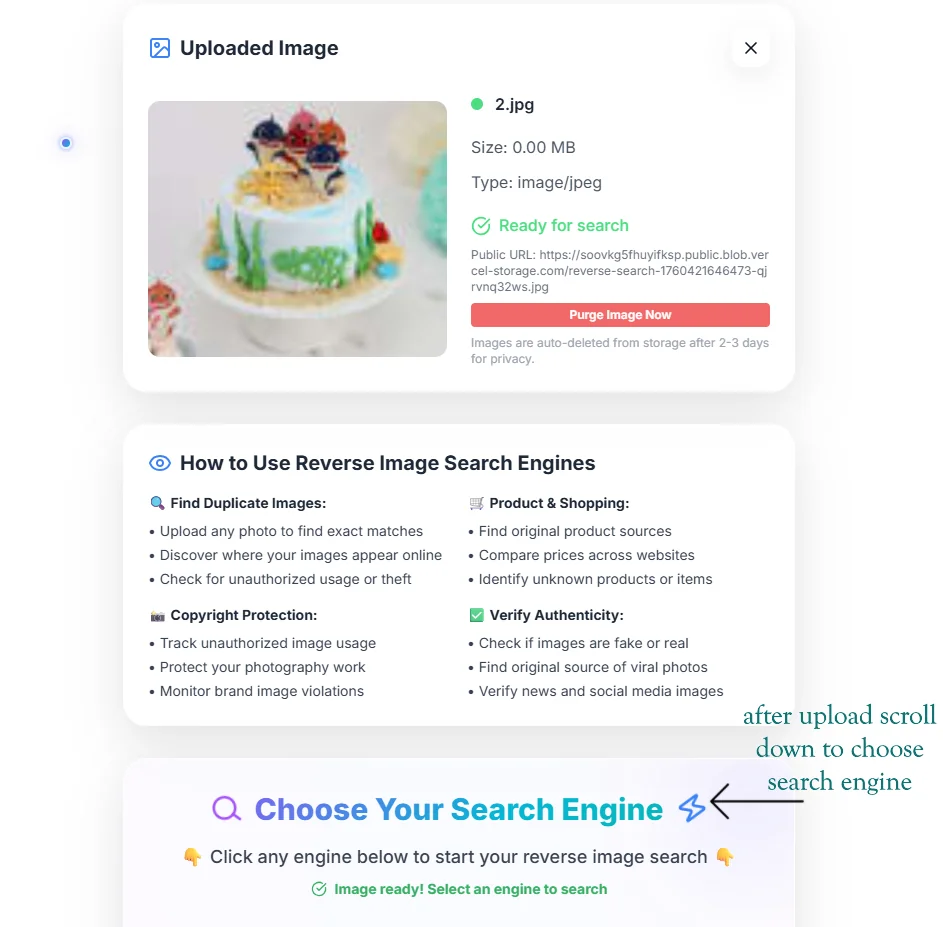
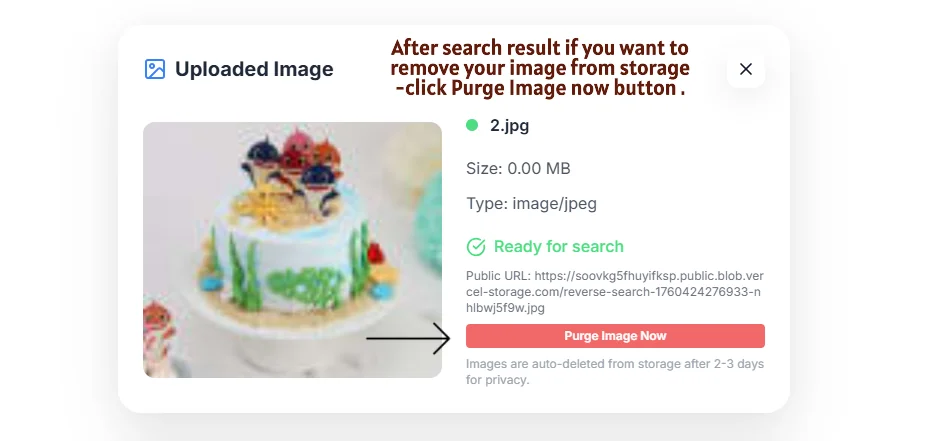
When using any reverse image search tool, it is important to understand what happens to your uploaded images. Most free online tools temporarily store your image on their servers to process the search. At DuplicateDetective, we take privacy seriously — uploaded images are stored only long enough to generate search URLs and are automatically purged. You can also manually delete your upload immediately using our Purge feature.
We never build databases from user uploads, and we do not use your images for training AI models. The images are passed directly to the search engine APIs you select, and the results open in new tabs on those engines' own websites. Your search activity on DuplicateDetective is not logged or tracked beyond basic anonymous analytics.
Tips for Getting the Best Reverse Image Search Results
- •Use the highest resolution available. Larger images produce better fingerprints and more accurate matches. If you have both a thumbnail and a full-size version, always search with the larger one.
- •Crop out irrelevant borders. If your image has added text, watermarks, or wide borders, cropping them out before searching can improve results because the search engine focuses on the core visual content.
- •Search across multiple engines. This is the core advantage of DuplicateDetective. Different engines have different strengths and index different parts of the web. A result that does not appear on Google might show up on Yandex or TinEye.
- •Try both the original and a modified version. If you suspect an image has been flipped horizontally or color-shifted, try searching with both the original and a corrected version to find different sets of results.
Frequently Asked Questions About Reverse Image Search
Is reverse image search free?
Yes. DuplicateDetective is completely free to use with no registration, no limits, and no hidden fees. The underlying search engines (Google, Bing, Yandex, TinEye) also offer free reverse image search. Some premium services like TinEye offer paid API plans for businesses that need to make thousands of automated searches, but casual use is always free.
Can reverse image search find images on social media?
It depends on the platform's privacy settings. Public posts on Facebook, Twitter, Instagram, and Pinterest are generally indexed by search engines and can be found. However, private accounts and content behind login walls are not indexed and will not appear in results. Yandex tends to be the most effective for finding social media profile photos.
Can someone reverse image search my photos?
If your photos are publicly accessible on the internet — on a website, blog, social media profile, or online marketplace — then yes, anyone can find them using reverse image search. This is why it is important to be mindful about what images you post publicly, especially personal photos that could be used for identity theft or catfishing.
How accurate is reverse image search?
Accuracy varies by engine and image type. For finding exact duplicates and near-identical copies, accuracy is very high — typically above 95%. For semantically similar images (for example, finding other photos of the same landmark taken from different angles), accuracy depends on the engine's AI capabilities. Google Lens tends to be the most accurate for semantic searches, while TinEye is the most precise for exact duplicate tracking.
What file formats are supported?
DuplicateDetective supports JPEG (.jpg, .jpeg), PNG (.png), and WebP (.webp) formats with a maximum file size of 10MB. These three formats cover the vast majority of images you will encounter on the web. If you have an image in another format (such as BMP, TIFF, or HEIC), you can convert it to one of the supported formats using any free online image converter before uploading.
Written by Vipin S. — Associate Manager at a leading global technology firm with 10+ years of experience in digital risk mitigation, enterprise technology, and large-scale system architecture.
Last updated: February 2026 • About the author • More articles