How to compare two images
- Drop your first image into the left slot (or click to browse).
- Drop the second image into the right slot.
- The tool reads both and returns a similarity score in a second or two.
- Read the score against the bands below to know whether they count as a match.
A quick example
Say you have a photo and a version of it someone cropped and re-saved. Load both. Because the crop keeps most of the original content, the score lands high — in the duplicate band — and you can say with confidence it's the same picture.
Now swap the second image for a different photo of the same subject — same dog, different pose. The score drops into the middle band: clearly related, clearly not the same shot. That gap between "same image" and "same subject" is the whole point of the number.
What the similarity score means
| Score | Read it as | In practice |
|---|---|---|
| 85–100% | Duplicate | Same image — maybe cropped, resized, or re-saved |
| 65–84% | Similar | Same subject or scene, but a genuinely different shot |
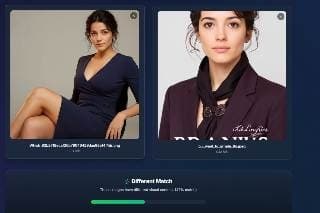
| 0–64% | Different | Different content with little in common |
Why does the score move at all if the images "look the same"? Because the tool doesn't compare pixels — it compares what each image contains. Re-saving a JPEG, nudging brightness, or shrinking a photo barely touches the content, so the score stays high. Crop away half the frame or flip it left-to-right and you've changed the content, so the score falls.
Treat the band edges as fuzzy. An 84% and an 86% aren't worlds apart — your own eyes get the final call on the borderline cases.
What throws the score off
- •A mirror flip. Flipping an image left-to-right can drop the score a lot, even though it looks identical to you. Test the un-flipped version too.
- •Heavy cropping. Cutting away most of the frame removes the content the tool matches on.
- •Big rotations. A slight tilt is fine; a 90° turn changes the layout enough to matter.
- •Tiny thumbnails. A 100-pixel image has too little detail for a reliable read — use the largest version you have.
- •Occlusion. A watermark, sticker, or object blocking the subject pulls the score down.
If the score looks wrong
- •Lower than expected on identical-looking images? Check orientation — a flip or rotation is the usual culprit.
- •Not a clean 100% on two "same" files? One was probably re-saved as JPEG, adding invisible compression noise.
- •An image won't load? Confirm it's JPG, PNG, or WebP and under the size limit.
Where it struggles (honestly)
Mirror images are a known blind spot — most content-based similarity scoring underrates them. Two genuinely different photos of the same product or place can also score higher than you'd expect, because the tool sees shared content, not identical files. It's a fast, private second opinion — not a forensic tool for a courtroom.
Your images stay on your device
The comparison runs in your browser. The model downloads once and does the work locally, so the two images aren't sent to a server to be compared. Fast, and your photos stay with you.
Written by Vipin Kumar Singh — founder of DuplicateDetective. I build and test these image tools myself.